Tutorial 1 of 7
Your first production line in 5 minutes
Beginner 5 min
Place a source, a buffer, a machine and a sink, connect them, press play and read throughput, lead time and the bottleneck. No account, nothing to install.
Twinworks runs completely in your browser. Your model is saved automatically on this device (IndexedDB) and the simulation runs on your own computer.
1. Open the workspace
Click Launch Twinworks. The start screen shows ready-made Templates and your Recent projects.
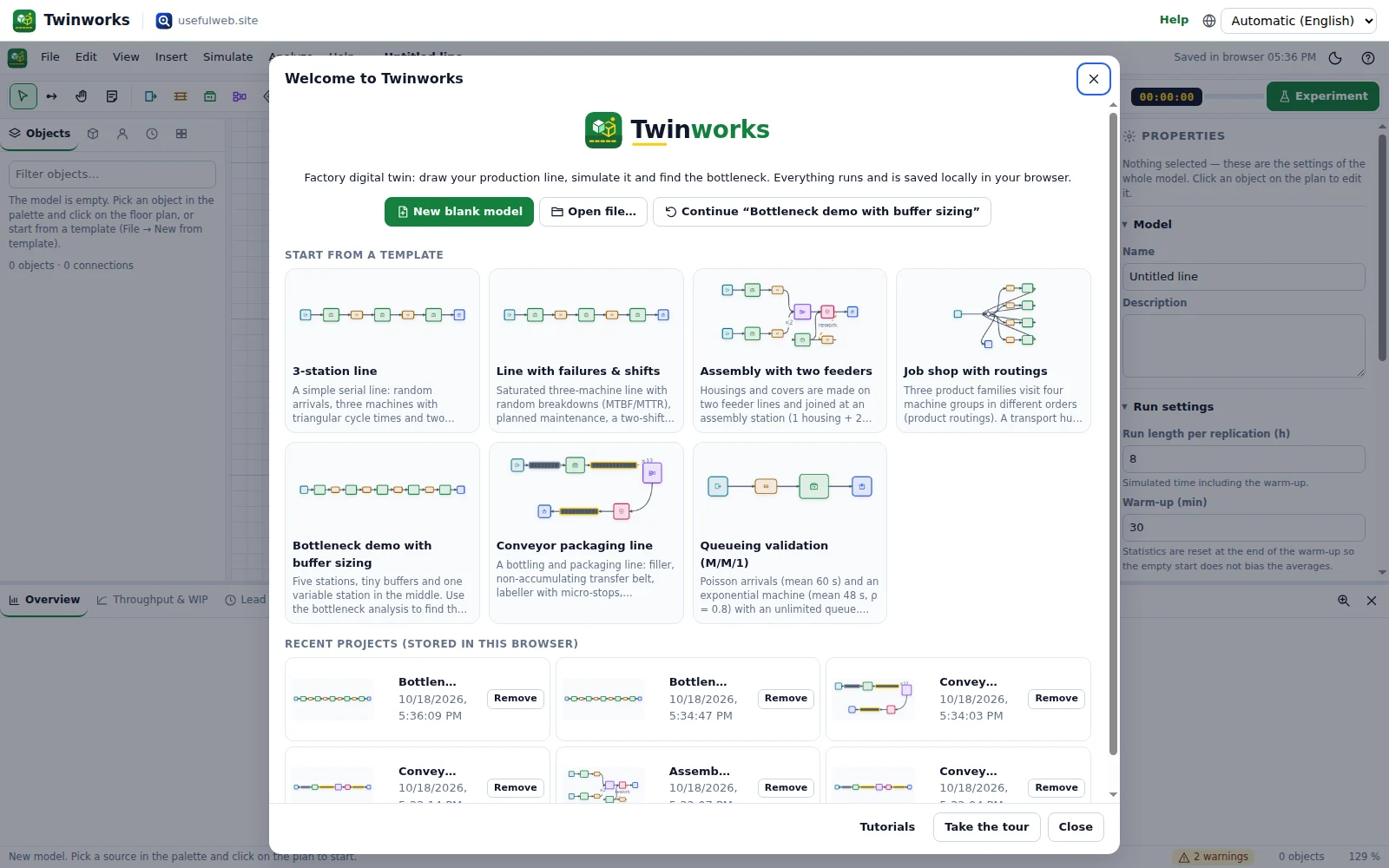
For this tutorial choose New blank model (bottom left of the start screen). You get an empty factory floor with a 0.5 m grid.
2. Place four objects
The toolbar above the floor holds the object palette. Click a button, then click on the floor to place the object. You can also press the number keys:
| Key | Object | What it does |
|---|---|---|
1 | Source | Releases raw parts into the line |
2 | Buffer | A queue that holds parts between stations |
3 | Machine | A workstation with a cycle time |
8 | Sink | Counts finished good parts |
Place Source → Buffer → Machine → Sink from left to right. While a placing tool is active, Twinworks connects each new object to the selected one automatically, so you already have a line.
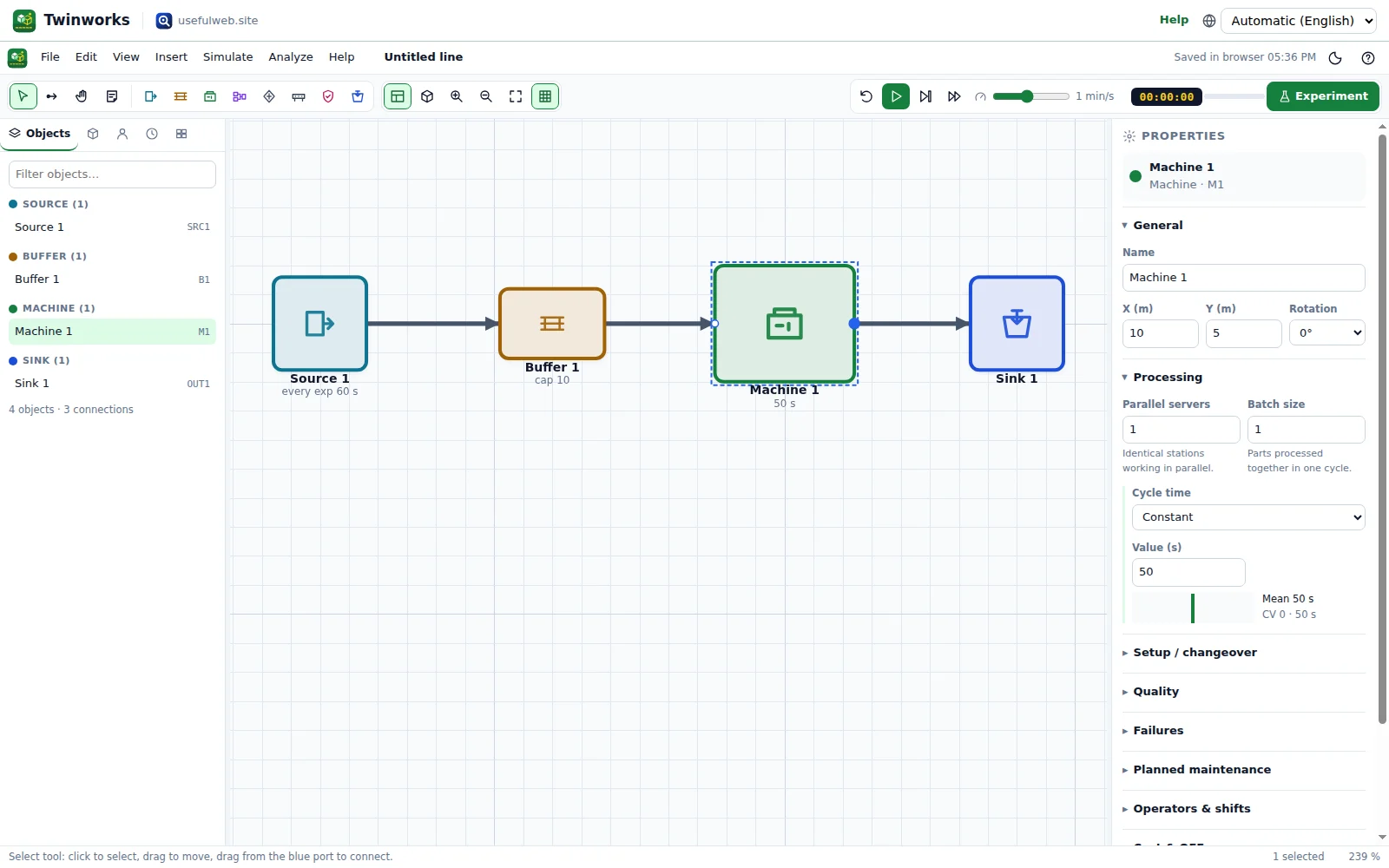
If an arrow is missing, press C (connect tool) and drag from one object to the next. Press V to go back to the select tool.
3. Set the times
Click the Source. In the Properties panel on the right, Arrivals is set to Interval (fixed or random) with an exponential distribution of mean 60 s — on average one part per minute, randomly spaced.
Click the Machine and look at Cycle time. The default is a constant 50 s. Change the type to Triangular with min 40, mode 48, max 60. The small chart next to the fields shows the shape of the distribution and its mean.
Every change can be undone with
Ctrl+Zand redone withCtrl+Y.
4. Press play
Press Space (or the green play button). Parts move along the arrows, the machine turns green while it works and the sim clock in the toolbar runs. The speed slider changes how many simulated minutes pass per real second.
.executes one event at a time (good for understanding what happens).Shift+Ffast-forwards to the end of the run (8 hours by default).
5. Read the results
The dashboard below the floor fills while the simulation runs:
- Throughput — good parts per hour after the warm-up.
- Lead time — time from release at the source until the part reaches the sink.
- WIP — parts inside the system on average, with a Little's law check (WIP = throughput × lead time).
- Bottleneck — the station that limits the line.
With a mean cycle time of 49.3 s and one arrival per minute, the machine is busy about 82 % of the time. Parts wait roughly two minutes in the buffer on average — the Pollaczek–Khinchine formula for this M/G/1 station gives ≈ 115 s. Waiting time grows steeply once utilization goes above 80 %, which is why a busy machine with random arrivals always has a queue in front of it.
6. Run an experiment
One run is one possible day. Click Experiment (or Ctrl+R): Twinworks runs several replications (5 by default) with different random seeds and shows every KPI as mean ± half-width of a 95 % confidence interval. Use these numbers for decisions, not the single animated run. The number of replications, the run length and the warm-up are under Simulate → Run settings….
Next steps
- Failures, shifts and operators make the model realistic.
- Find the bottleneck shows how to read the state Gantt chart and OEE.