Tutorial 12 of 12
Share a factory model with your team
Intermediate 6 min
Save a Twinworks project with all scenarios to a shared workspace, invite people with roles, edit the line live and give viewers a read-only model.
Shared workspaces let several people work on one Twinworks model: industrial engineers change the line while managers look at the bottleneck and the scenarios. Saving to a workspace is optional: without an account, Twinworks keeps working in this browser exactly as before.
Save model to a workspace
- Open or build the model you want to share.
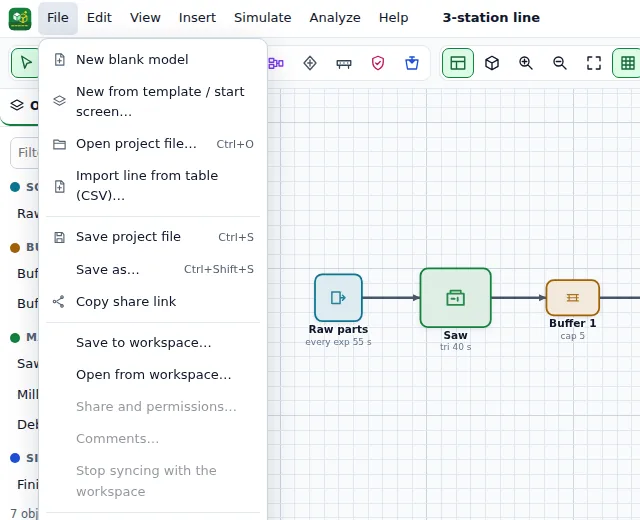
- Choose File → Save to workspace…. Sign in with a passkey or Google if you are asked to.
- Pick a workspace (or create one), check the title and choose Save.
The status chip in the top bar now shows the workspace and Saved to …. From now on every change is saved to the workspace a moment after you make it, and your copy in this browser stays as well.
Invite your team and set permissions
Choose File → Share and permissions…. You can invite people with a link, give them a role (admin, member, viewer or guest) and set rules for this one document, for example "view only" for a client. The dialog also shows a direct link to the shared model: anyone with access opens it with that link, or with File → Open from workspace….
Work together live
When a teammate saves a change, it appears in your model automatically, and the chip shows the avatars of the people who have the same model open. If you both changed it at the same time, Twinworks asks you what to do: load their version, keep yours and overwrite theirs, or save yours as a copy.
File → Comments… lists the discussion of the model. A comment can be about the whole model or about a station, buffer or other object: select it first, then choose it under About. Show next to a comment selects that object again.
Viewers see a read-only model
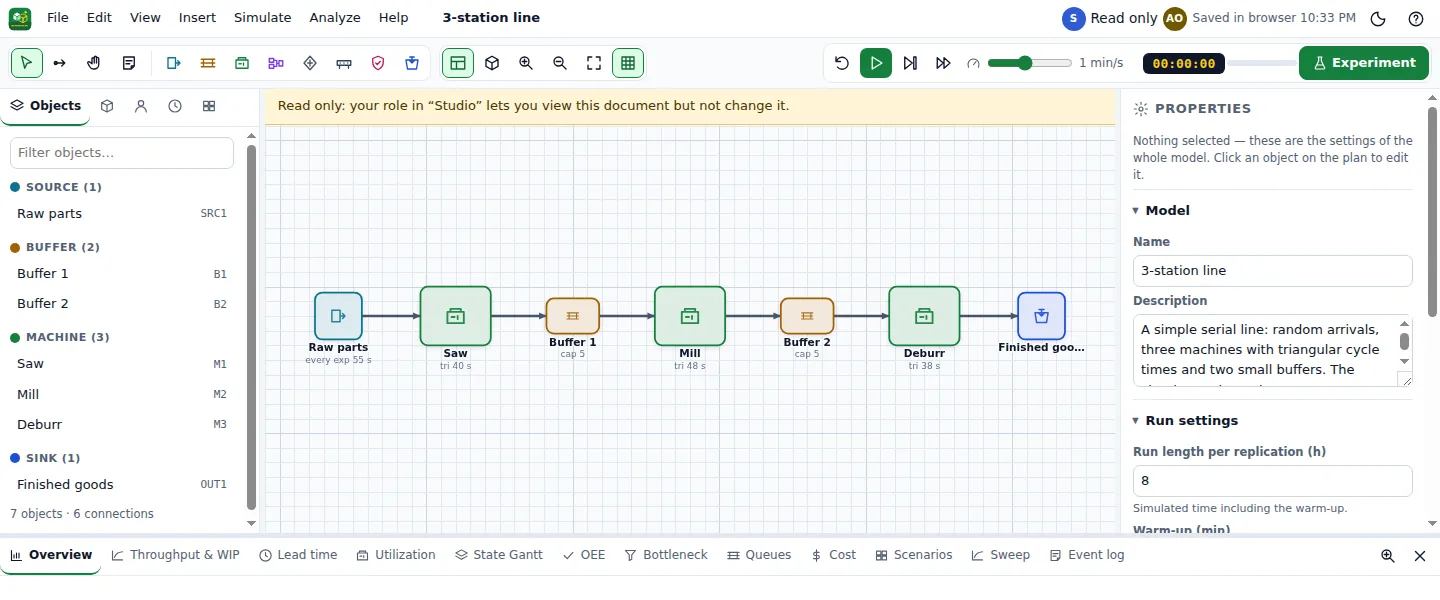
People with the viewer role (or a "view only" rule) get a yellow notice above the work area and Read only in the chip. They can switch scenarios, run the simulation, experiments and sweeps and export reports, but every edit is refused and the editing fields are switched off. A teammate's changes still arrive live.
What is shared
The whole project with every scenario is one workspace document (up to 2 MB). It holds no media. Simulation results are recalculated on each device and are not shared.
File → Stop syncing with the workspace disconnects this browser from the shared model; your copy stays here. Opening another file or template also stops syncing, so the shared model is never overwritten by accident.
Ready to try it?